Every wall printing job that sends you back to square one — tweaking ink coverage, second-guessing resolution, re-running test strips on a surface you've printed on a dozen times before — is a systems problem. Not a skills problem. You already know how to print. What's costing you an hour per job is a missing preset library built around your niche.
This guide walks you through building custom studio presets from the substrate up: concrete, gypsum board, brick, painted drywall, and everything in between. You'll leave with a working framework for wall printer color profiles and surface-specific RIP configurations built for your three most profitable job types — ready to load, ready to print, ready to invoice.
Map Core Substrates to Niche Market Requirements
Substrate choice is where niche strategy becomes print strategy. Before you touch a resolution setting or ink density slider, know which surfaces your target market throws at you most — and what those surfaces demand in return.
Here's the reality: three niche markets dominate most wall printing studios. Each has a natural substrate fit that anchors your entire preset architecture.
The Three-Niche, Five-Substrate Matrix
Home Decor & Kids' Rooms live on gypsum board, plaster, and light-primed drywall. Viewing distance is tight — 0.5 to 1.5 meters. That means soft gradients, saturated cartoon colors, and clean edges are non-negotiable. Low-VOC ink behavior on these surfaces matters as much as color fidelity. Clients who want wipeable finishes? PVC or glass steps in.
Commercial & Brand Spaces belong to coated wallpaper, PVC sheeting, and glass/tilted acrylic. Corporate VI accuracy and sharp typography under controlled lighting push edge precision to the top of your output goals. These substrates reward repeatability. That makes them ideal for multi-site brand rollouts where color consistency across locations is the deliverable.
Large-Scale Art Murals & Hospitality are built on exposed brick, concrete, and drywall/plaster. At medium-to-long viewing distances, texture stops being a problem. It becomes a compositional asset. Warm-tone cohesion and environmental storytelling take priority over micro-detail.
Five-Substrate Preset Logic at a Glance
Substrate | Primary Risk | Preset Priority | Best Job Type |
|---|---|---|---|
Latex-painted drywall | Absorption, bleeding | Seal-first workflow; high-opacity inks | Speed-optimized batch jobs |
Exposed brick / concrete | Rough texture, uneven porosity | Texture-compensation; heavier coverage | Murals, hospitality |
Gypsum board / plaster | Chalky surface, adhesion variance | Light-prime + detail preset | Detail-critical showcase prints |
Coated wallpaper / PVC | Low absorption, gloss reflection | Low-bleed, high-edge-sharpness preset | Brand rollouts, batch jobs |
Glass / tilted acrylic | Non-absorbent, reverse-print logic | Adhesion-first / reverse-view preset | Premium brand spaces |
The Decision Rule That Saves You the Most Time
Stop deciding substrate logic job-by-job. Lock in these routing rules before a single file opens in your RIP software:
Drywall/plaster → detail-critical color control, clean typography
Brick/concrete → large-format impact where texture works with you
PVC/coated wallpaper → fast installs, repeatable corporate identity
Glass/acrylic → premium finish, reflection management, reverse-view display
The two porous extremes — latex-painted drywall and glass/acrylic — need the most surface prep when using a wall printer machine. Drywall needs priming for bleed control. Glass needs an anchor coat for adhesion. Both prep steps belong in your preset notes. Don't leave them as a morning-of mental checklist.
Fix this substrate-to-niche map first. After that, every parameter decision downstream — ink coverage, print resolution, wall printer ICC profiles — has a clear starting point. No more blank slates.
Configure Base RIP Software Settings and Speed vs Quality Parameters
Your RIP software doesn't care about your niche. It just executes what you tell it. So skip locking down base settings for each substrate type, and every wall printing job starts from the same generic default. You pay for that in time, ink, and inconsistency.
Four parameter blocks control everything in your base preset: resolution, pass count, carriage direction, and ink transport conditions (temperature, vacuum, and TAC). Get these right once per substrate. Your setup time drops from an hour to under five minutes.
Resolution: Match DPI to Viewing Distance, Not to Perfectionism
Three resolution modes cover every realistic wall printing scenario:
360×720 dpi — Commercial text, wayfinding, large-format signage. At 1.5–2 m viewing distance, edges stay sharp and production speed holds at 5–10 m²/h on vertical machines. Default for office rollouts and retail chain installs.
720×1440 dpi — Home decor, standard murals, gradient-heavy residential work. Better midtone smoothness, about 60–70% of the speed of 600×600 at the same pass count. Your everyday workhorse mode.
720×2880 dpi — Faces, logo lockups, museum-grade focal panels. Speed drops to 2–3 m²/h. Reserve this for masked tiles within a larger job. Don't use it across the whole job unless the client is paying for fine-art inspection.
Lock these as your three resolution defaults. Stop debating 1400 vs. 2880 on every job.
Pass Count: The Speed vs. Smoothness Dial
Pass count is the most direct lever you have over output quality — and throughput. Here's the practical map:
Pass Count | Speed (relative to 4-pass) | Use Case |
|---|---|---|
4-pass | 100% baseline | High-volume commercial walls, large background fills |
6-pass | ~65–70% | Standard commercial rollouts, retail décor |
8-pass | ~50% | Residential murals, gradient-heavy art |
10-pass | ~40% | Skintones, soft skies, vignettes |
12-pass | ~30–35% | Museum-grade focal panels, short-distance inspection |
The default rule: 4–6 pass for commercial volume, 8–10 pass for residential and kids' rooms, 12 pass for specific high-value art segments — not the whole wall.
Carriage Direction: Bi-Di vs. Unidirectional
Bidirectional printing jets on both travel strokes. This doubles your throughput for the same pass count. The trade-off: registration timing errors show up as banding or color shift on fine detail and straight edges.
Unidirectional prints on one stroke, then returns empty. Dot placement stays consistent, edges come out clean, and banding disappears. Speed runs at about half of bi-di.
The locked strategy: set your global job default to bidirectional. Then pull out the critical regions — logos under 100mm, faces, fine line art — as separate tiles. Assign those tiles to unidirectional within the same RIP job. You get throughput on the fill and precision on the detail. No need to rebuild the whole preset.
Ink Temperature, Vacuum, and TAC: The Parameters Most Studios Leave at Factory Default
These three settings do more damage when ignored than almost anything else on a professional vertical wall printer.
Head temperature by ink type:
- Latex/water-based on porous walls: 35–45°C. Dot gain appearing on flat latex paint? Pull back to 35–38°C. Missing nozzles at speed? Push toward 42–45°C.
- UV on sealed/non-porous surfaces (glass, coated panels): 28–32°C. Higher temps cause dot spread and edge fringing on non-absorbent surfaces. Glass and metal stay at 28–30°C. PVC and wallpaper can handle 30–32°C.
TAC (Total Area Coverage) by substrate — set this in your RIP's ink-limit module, not by guesswork:
Substrate | Recommended TAC | Why |
|---|---|---|
Latex-painted walls | 200–240% | Above 240%, solid midtones stay tacky and bronze |
Rough concrete/brick | 260–300% | Texture creates micro-shadowing; higher TAC lifts density |
Gypsum/plaster | 220–260% | Under 220% looks washed out; over 260% creates chalky halos |
Coated wallpaper/PVC | 240–280% | Fast-cure coating supports higher ink load without coalescence |
Glass/metal with white | 180–220% CMYK + white channel | Above 220% risks back-bleed on non-porous surfaces |
Your Four Base Presets, Ready to Configure
These are starting-point configurations — not final outputs. Run a test strip on your actual wall before locking any preset into production.
Commercial VI on latex-painted walls
- Resolution: 360×720 dpi | Passes: 4–6 | Direction: bi-di default, uni for text/logos
- Head temp: 38–42°C | TAC: 220% (range: 200–240%)
Home décor murals on coated wallpaper/PVC
- Resolution: 720×1440 dpi | Passes: 6–8 | Direction: bi-di fills, uni for faces/focal strips
- Head temp: 30–32°C UV / 40–45°C latex | TAC: 260–280%
Museum-grade art murals on primed gypsum or coated media
- Resolution: 720×2880 dpi | Passes: 12 | Direction: unidirectional throughout
- Head temp: per ink type above | TAC: 240–260%
Name these presets in your RIP as labeled above. Consistent naming keeps your preset library usable. It also stops a new operator from loading the wrong profile on a commercial job that should have been done in four passes.
Develop Custom ICC Profiles and Color Management Strategies
Color management is where most studios lose money in wall printing — not on bad prints, but on reprints that were almost right.
A generic ICC profile is a guess. It assumes your printer, your ink set, and your substrate behave like someone else's setup. They don't. Switch from latex-painted drywall to raw concrete, and your color reproduction shifts across the board. The only fix is a profile built from your actual hardware, your actual inks, and the specific wall surface in front of you.
Here's the workflow that holds up in real production.
Build One Profile Per Substrate, Per Ink Set
This is non-negotiable. Coated wallpaper and exposed brick are not interchangeable — not for TAC, not for resolution, and not for ICC profiling. Create a separate profile for each printer + substrate + ink combination you run on a regular basis.
The process for each:
Print a target chart on the substrate, using your locked RIP settings (not a test mode, not default media).
Measure the patches with a spectrophotometer. For reflective or textured surfaces like brick or concrete, use a device with at least an 8 mm aperture and polarized filters. Smaller apertures misread texture as tone variation.
Generate the ICC profile from those measurements inside your profiling software.
For patch counts: a 24–64 patch chart works for quick linearization passes, but production-grade profiles need larger targets. Neutrals matter on brand walls — they always do. Use an extended neutral patch set inside your full target build. Neutral instability is the top complaint on color-critical commercial reprints.
Set White Point and Gamma Before You Profile
Lock these before you print the target chart. Change them afterward, and you reprint and re-measure everything.
White point: D50 for print-room evaluation under standard viewing conditions. Use D65 if your client previews work under daylight-balanced display lighting.
Gamma 2.2–2.4: standard for home décor and commercial environments.
Gamma 2.0: use this for bold architectural graphics and line-dominant murals. It lifts contrast in a way that reads better at 3–5 meter viewing distances.
Match Rendering Intent to Your Niche
This one setting controls how your RIP maps colors that fall outside your printer's reproducible gamut.
Niche | Rendering Intent | Why |
|---|---|---|
Brand / commercial walls | Relative Colorimetric | Preserves in-gamut hues, keeps logo colors stable, limits unexpected shifts |
Home décor / kids' rooms | Perceptual | Compresses gamut gradually, preserves gradient transitions and soft saturation |
Art murals | Saturation or Perceptual | Prioritizes visual vibrancy over strict colorimetry |
Don't leave this on your RIP's default. A Pantone-matched brand wall and a kids' room character mural created with a wall mural printer need opposite intent logic.
Channel Limits That Prevent the Most Common Failures
Inside your RIP's ink limit module, set these caps per substrate type:
Individual channels: max 85–90% — prevents banding in deep shadows and overinking on dense fills.
White underbase on dark or non-porous substrates: 80–120%, depending on substrate darkness. Go under 80% and your colors look translucent. Go over 120% and you risk adhesion failure.
Light cyan / light magenta: enable for residential and skin-tone-heavy presets. These channels smooth sky gradients and flesh tones in ways that CMYK alone cannot.
Heavy black boost: disable unless the job is monochrome or technical line art. On murals, boosted black makes shadows look muddy at arm's length.
One Rule That Prevents Profile Conflicts
Using a custom wall printer ICC profile? Disable your printer driver's own color management. Turn it off entirely. The RIP and the printer driver both running color conversion at the same time is the top source of unexpected hue shifts — the kind that look fine on screen and wrong on the wall.
In your RIP settings: set the output intent to your custom profile, then select "No color adjustment" or the equivalent option in the driver. Also turn off high-speed mode during any color-critical print run. Speed changes dot timing. That changes how your ink lays — and it throws off the measurements your profile was built from.
Run a soft proof before every production job. Your ICC profile flags out-of-gamut colors before a single drop of ink hits the wall. You fix artwork in three minutes instead of reprinting in three hours.
Calibrate Wall Texture Adaptation and Surface Preparation Workflows
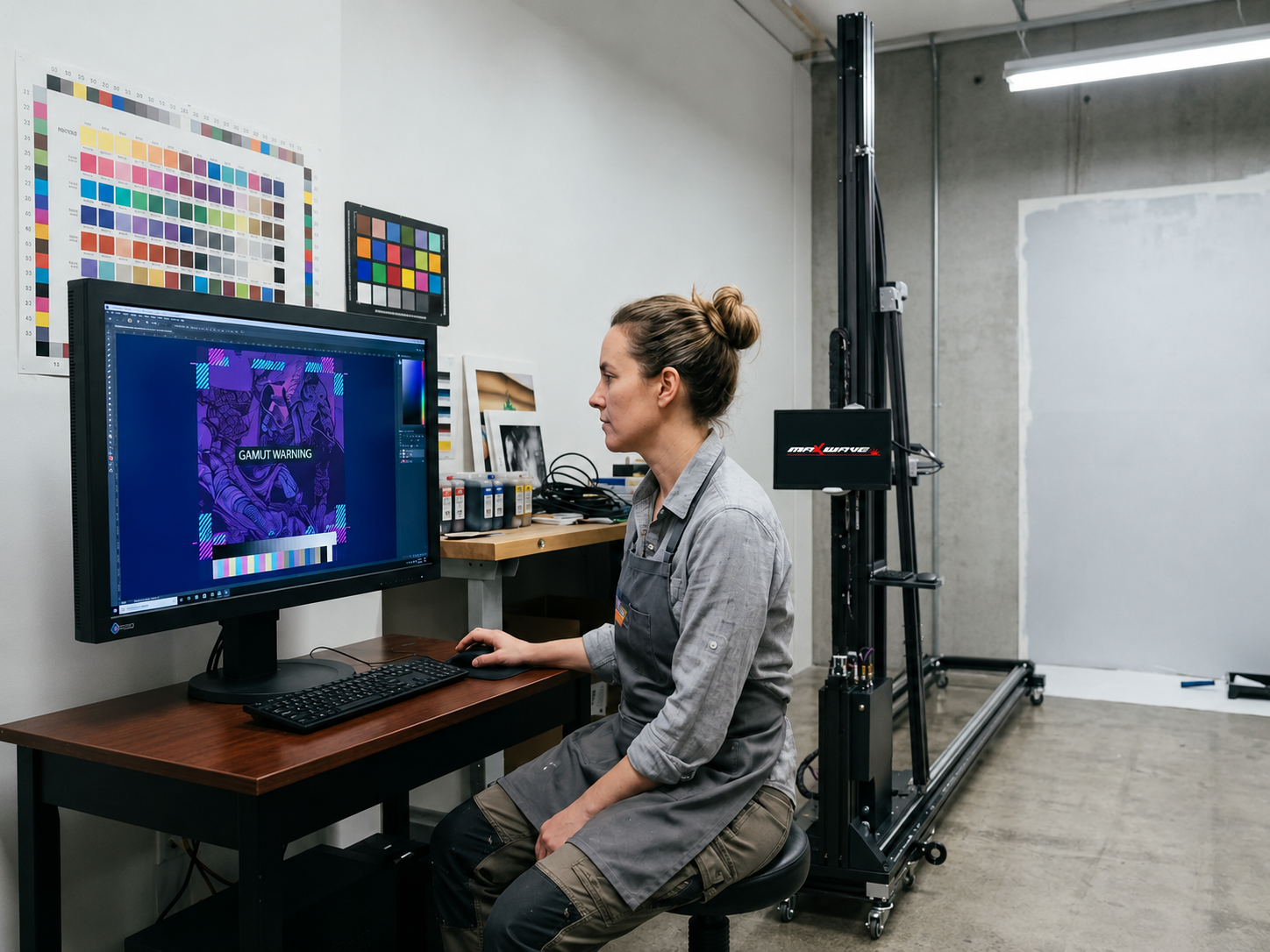
Surface preparation isn't a preliminary step. It is the preset. Skip a standardized prep workflow, and your RIP configurations run on an unstable foundation — every single job.
Here's the real issue: texture variation between jobs isn't the problem. Uncontrolled texture variation is. Systematize your prep, and your wall texture print calibration becomes a repeatable input. Not a daily variable you're chasing.
The Non-Negotiable Environmental Baseline
The space must hold at or above 10°C / 50°F for a minimum of 48 hours before any surface work starts. Not the morning of the job. Forty-eight hours prior. Keep ventilation active until all materials are dry and stable.
That 48-hour threshold isn't just caution. Below it, adhesion behavior and ink absorption both go unpredictable — no matter how solid your substrate presets for wall surfaces are.
Check surface moisture before loading any preset. The ceiling is under 15%. Go above that, and your preset runs against the wrong substrate state. Your profile measurements stop reflecting reality.
Three-Track Prep by Texture Class
Smooth painted drywall: Run a 180-grit sanding pass to knock down surface peaks. Stop short of cutting into the paint layer. Follow with a water-based all-purpose primer — this step is required after any skim coat or mud repair, before ink touches the surface.
Chalky or absorbent walls (gypsum, plaster): Apply a thin skim coat of gypsum joint compound or a purpose-made coating. Let it dry in full. Then prime. The primer is not optional. Unpainted drywall mud leads straight to inconsistent ink coverage on wall murals.
High-porosity surfaces (bare concrete, raw brick): Use a moisture barrier sealer rated at perm ≤1. This equalizes absorption differences across the surface. Your TAC settings then perform the way your profile expects them to.
Consistency Variables That Map to Preset Stability
Three variables decide whether your prep converts into solid preset performance:
Material batch size: Any job over 5 gallons of primer or sealer needs the full batch mixed at once. Mid-job batch changes shift absorption behavior and throw off your baseline.
Air pressure: Hold a continuous-flow supply at consistent high CFM, kept below 50 psi. Pressure variation creates pattern irregularity. No preset fixes that after the fact.
Technique consistency: Application method is the third leg of this. A uniform stroke pattern keeps your calibrated preset performing like a calibrated preset — not a rough approximation of one.
Lock these prep conditions into your preset documentation. Not as a footnote — as Step 0. Your wall printer color profiles were built against a specific surface state. Prep is how you put that state back in place, job after job.
Standardize Preset Naming Conventions and Classification Architecture
A preset library without a naming system is just a folder full of mystery files. Six months in, you won't remember what NewPreset_FINAL_v3_USE_THIS_ONE does — and neither will anyone else in your studio.
The fix is a naming convention that encodes the job's full production logic in the filename. No guessing. No opening files to check settings.
The Master Naming Pattern
Use this element order across every preset you build:
Niche_Substrate_Resolution_Pass_Mode_ToneTag_vX
Each element has a fixed shortcode. Keep them consistent:
Niche:
COM(Commercial),RES(Residential),MUR(Mural Art),PROOF(Contract Proof)Substrate:
LATEX,GYPS,CNCRT,COATD,GLASS,PVC,FABRICResolution:
600x600,720x720,720x1200— always horizontal × vertical, no spacesPass:
4P,6P,8P,10P,12PMode:
RelCol(Relative Colorimetric),Perc(Perceptual),AbsCol(Absolute Colorimetric)ToneTag:
LogoSafe,SkinSafe,SoftCartoon,TextSharp,PhotoRichVersion:
v01,v02— two digits, always
Here are real examples pulled from production:
COM_GLASS_720x1200_8P_RelCol_LogoSafe_v02RES_LATEX_600x600_6P_Perc_SoftCartoon_v01MUR_CNCRT_600x600_12P_AbsCol_PhotoRich_v03
Folder Architecture That Holds Up in Real Operations
/Studio_Presets/
/Commercial/Glass/Production/
/Commercial/Glass/Draft/
/Commercial/Glass/Archive/
/Residential/Latex/Production/
/MuralArt/Concrete/Production/
Each substrate folder holds three subfolders. Production is locked and read-only for operators. Draft is editable by color staff only. Archive stores retired versions for rollback. Never drop a preset in the root folder.
Metadata Sidecar: The File Nobody Builds Until They Wish They Had
Pair every .prst file with a .json sidecar that shares the same basename. At minimum, capture:
TAC_Limit_pct,InkType,DryTime_minICC_Profilefilename andICC_VersionLastValidated_Date(ISO format:2026-05-18)ΔE_Average_TargetandΔE_Max_Target
A client calls six months later about a reprint. You pull the JSON and see the full picture of what ran on that wall. No digging, no guessing.
Version Control and Change Logs
Never overwrite a production preset. Clone it, bump the version, validate it, then move it to /Production/ with read-only permissions. Log every change:
Field | Example |
|---|---|
|
|
| Color |
| Deeper reds, CMY upper midtones |
| 2.3 → 1.6 |
That change log is your proof that your wall printer ICC profiles are improving — not drifting.
Execute Validation Batches Using Color Delta Metrics and Client Sign-Off
A preset isn't production-ready until the numbers confirm it. Gut feeling won't hold up in a reprint conversation.
Before any job reaches client delivery, print a full validation strip using your locked preset — final speed, final direction, final pass count. No draft mode. No preview shortcuts. The strip needs to include 100% CMY primary blocks, K-100, neutral grays at 10/30/50/70%, a 0–100% gradient ramp, 6pt serif and sans-serif text, a high-detail photo crop, and a brand logo vector. That control set catches every failure mode before ink hits a client's wall.
The Numbers That Matter
Measure against your reference standard — the master digital target or approved proof — not last week's output. ΔE is the gap between where you aimed and where you landed. Your comparison point drives everything.
Use ΔE00 as your pass/fail metric:
ΔE00 < 2.0 — commercial and brand-critical color match. Required for logo walls and VI rollouts.
ΔE00 < 3.0 — acceptable for secondary elements and non-critical fills.
ΔE00 > 3.0 — visible to untrained eyes. Reprint territory.
For textured or high-porosity substrates — concrete, raw brick, unsealed plaster — widen the band to ΔE00 ≤ 3.5. Write that tolerance into the job spec before production starts. Don't wait for a client to flag it afterward.
Set visual defect thresholds alongside your delta readings:
Banding: zero visible at 1.0 m
Gradient stitching: ≤5% across the full ramp
Ink wicking on unsealed plaster: ≤0.3 mm spread
Small text legibility: readable at specified point size
Start with solid control bars. They give you cleaner, more reliable data than image areas for pass/fail calls.
The Sign-Off That Protects Both Sides
Approve color under a D50 light booth. For on-site work, document the ambient lighting conditions — target 500–700 lux, controlled and consistent.
Get clients to sign a tolerance clause before production: "±1 ΔE shift acceptable due to wall porosity variance." That clause isn't defensive paperwork. It's a clear agreement that wall material behavior is a documented variable — not a studio error.
Attach the printed test strip to the job dossier. Include: date, operator ID, printer and preset name, substrate, print speed and direction, pass count, ΔE readings by patch, client tolerance band, and final pass/fail sign-off. That dossier is your audit trail. It's also your proof that your wall printer color profiles are hitting spec — job after job.
Embed Presets into Your Studio Workflow and Let Feedback Drive Iteration
Presets don't run your studio. Systems do. The difference between a preset library that gets used every day and one that sits unused in a folder comes down to one thing — whether you've built it into how work actually moves through your space.
Make the Preset the Default Path, Not the Optional One
Every operator action routes through a named preset. No exceptions. No ad-hoc tweaks at the machine. The tool that enforces this is the hot folder.
Map each production preset to its own RIP hot folder:
\\RIP\hotfolders\INT_LATEX_MATTE_V1\\RIP\hotfolders\RAW_CONCRETE_PRIMED_V2
The SOP is straightforward. The job ticket specifies a preset name and version. The file drops into the matching folder. The RIP applies resolution, ICC profile, TAC limit, and screening — no manual input needed. For a professional vertical printer workflow, configuration time drops from 30–60 minutes to under 5 minutes. That's not a rough guess. It's the number you measure against each month.
One-Parameter Iteration, Logged Every Time
A job produces a defect. The fix follows a pre-approved adjustment ladder — one variable per run:
Banding: add +1 or +2 passes before touching speed
Color shift: move TAC in 10% increments; adjust gamma ±0.1 for midtones
Adhesion failure: step UV power up 5–10% before changing ink load
Test every adjustment on a 30×30 cm scrap from the same site, using a fixed validation chart. Log the experiment ID, the single parameter you changed, and the result. No skipping steps.
A preset earns Production status after two consecutive clean test batches plus two real jobs with zero banding, zero adhesion failure, and a 24-hour scratch score of 0–1. Once it passes, version it, freeze it, and pull the old one from the operator UI.
Run Recalibration Every Quarter to Keep the Library Honest
Set an ICC re-characterization on a fixed schedule — every quarter — for your highest-volume presets. ΔE average drifts beyond 2–3 against your original baseline? Rebuild the profile from scratch. Don't patch around it. New ink batch from your supplier? Run a verification chart before the next production job. New substrate source with a noticeably different absorption rate? Log it as a new media entry. Don't assume it behaves like the old one.
Any preset untouched for six months gets archived and removed from the operator list. A clean, current library is far easier to trust than one loaded with outdated entries.
Conclusion
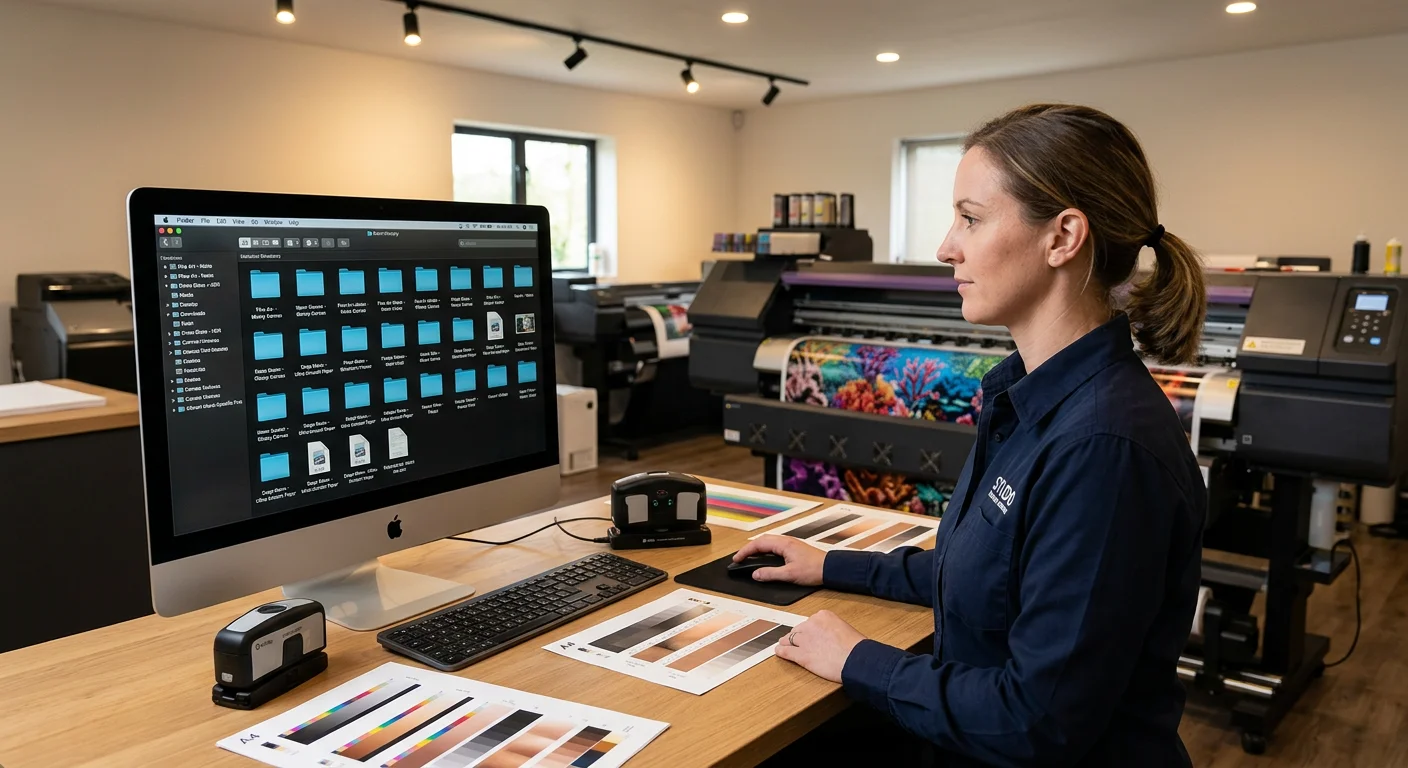
Every hour you spend tweaking ink coverage or guessing at resolution settings is an hour lost. You're not printing. Not billing. Not growing.
The preset library you build this week becomes your competitive edge next year. Your wall printer ICC profiles and substrate presets are more than technical configurations. They're stored knowledge, locked into your workflow. That knowledge stays put — even at 11pm when you're running on fumes before a big commercial install.
Here's your next step: pick your single highest-volume niche. Residential accent walls. Restaurant murals. Pick one. Then build just three production-ready presets this weekend.
From there, the process is simple:
Run your validation batch
Check your delta-E numbers
Get one client sign-off
Three presets. One weekend. That's the entire ask.
The studios that win in niche wall art printing aren't the most talented — they're the most systematized. Start there, and the talent compounds.
Ready to scale your wall printing business? Discover how a professional WallPrintBox wall printer can help you achieve faster setup times, consistent print quality, and higher profitability on every project.